
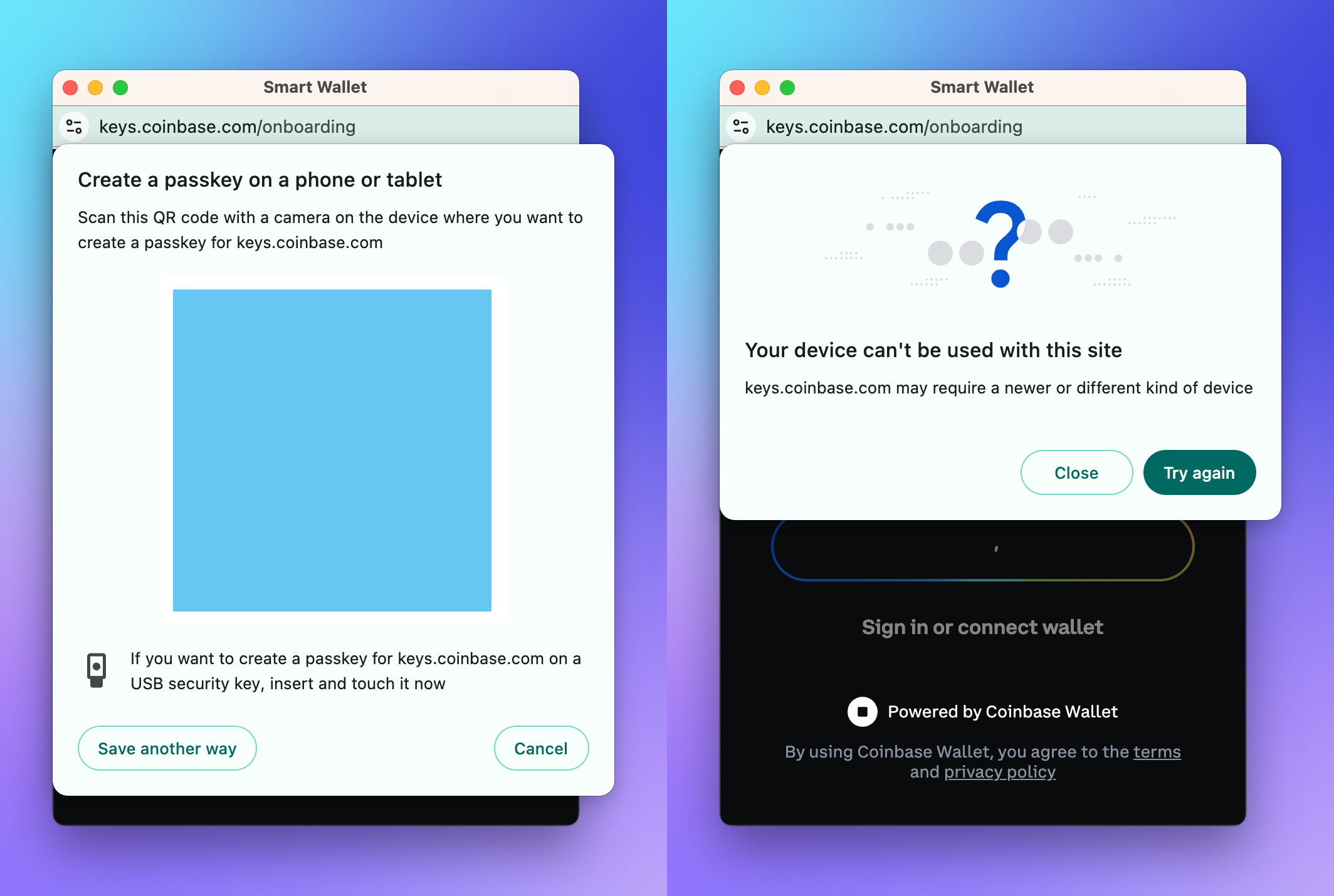
What makes passkey wallets secure
Passkey wallets replace traditional passwords with cryptographic keys stored locally on your device. This architecture removes central databases from the attack surface, ensuring your private keys never leave your hardware. Because authentication relies on challenge-response protocols bound to specific domains, passkeys are inherently resistant to phishing and data breaches.
The security model rests on three pillars: local storage, phishing resistance, and biometric verification. When you log in, your device signs a unique challenge from the website. If a phishing site attempts to intercept this, the signature fails because it is bound to the legitimate domain, not the fake one. Biometrics, such as Face ID or Touch ID, verify your identity to access the private key, ensuring that even if your device is stolen, the keys remain inaccessible without your biological confirmation.
This local, encrypted storage is why major providers like Apple and Google design passkeys to be resistant to phishing by default. Unlike passwords, which can be intercepted or reused across sites, passkeys provide a stronger, more convenient security layer.
Create a passkey wallet step by step
Setting up a passkey wallet replaces traditional seed phrases with device-based biometrics or PINs. This method leverages the same authentication you use to unlock your phone or computer, making it harder for attackers to steal your assets through phishing or data breaches. The process is straightforward and typically takes less than five minutes.
The primary advantage of this setup is that passkeys are resistant to phishing. Because the cryptographic signature is tied to the specific domain of the wallet service, attackers cannot trick you into signing a malicious transaction by visiting a fake website.
Avoid these common passkey mistakes
Passkeys simplify authentication by tying your wallet to your device’s biometrics, but they introduce new risks if you misunderstand how they work. Treating a passkey like a traditional seed phrase or ignoring device security can lead to permanent loss of access. Understanding these pitfalls is essential for maintaining the security you signed up for.
Mistake 1: Confusing Passkeys with Seed Phrases
A common error is assuming a passkey is a backupable string of words. It is not. Passkeys are cryptographic key pairs stored securely on your device, protected by biometrics or a PIN. Unlike a seed phrase, you cannot write them down or copy-paste them into another wallet. If you lose your device and have no recovery method, you lose your keys. This design prevents phishing but removes the "write it down" safety net.
Mistake 2: Ignoring Device Security
Your passkey is only as secure as the device it lives on. If someone gains access to your unlocked phone or computer, they can authenticate as you. The security model relies on the device being trusted at that moment. If you leave your device unlocked in a public space, you are essentially leaving your wallet door open. This is why keeping your device’s lock screen active and updating your OS is the primary layer of your wallet’s defense.
Mistake 3: Assuming Universal Support
Not all platforms support passkeys yet. If you assume your wallet is universally compatible, you might find yourself locked out of services that still require passwords. Stick to platforms that explicitly support passkey authentication to ensure seamless access. As the ecosystem grows, this limitation will fade, but for now, verify support before relying solely on biometric login.
Compare passkey wallets and hardware keys
Choosing between a device-bound passkey and a standalone hardware security key depends on your specific threat model. Passkeys offer convenience by leveraging biometrics on your phone or laptop, while hardware keys provide a physical layer of isolation that is harder to compromise remotely.
The table below breaks down the practical differences to help you decide which fits your risk profile.
| Feature | Device Passkey | Hardware Key |
|---|---|---|
| Phishing Resistance | High (bound to origin) | Very High (physical binding) |
| Convenience | High (biometric unlock) | Medium (plug/tap required) |
| Recovery | Medium (cloud sync) | Low (backup keys needed) |
| Offline Security | Medium (device dependent) | High (no network exposure) |
Choose device passkeys if you prioritize seamless daily use. Modern operating systems sync these keys across your trusted devices, meaning you rarely face lockout scenarios if you lose a single phone. They are resistant to phishing because the cryptographic signature is tied to the specific website or app origin, not just a password field.
Choose hardware keys if you are a high-value target. A physical key like a YubiKey cannot be accessed by malware on your computer. Even if your device is compromised, the attacker cannot trigger the physical touch required to sign a transaction or login. This makes it the gold standard for securing significant crypto holdings or critical accounts.
Secure your crypto with these tools
Protecting your assets starts with the right infrastructure. Passkey wallets leverage your device’s biometrics—like Face ID or Touch ID—to create cryptographic keys that never leave your phone or computer. This approach removes the vulnerability of remembering or storing long seed phrases, while hardware keys offer a physical barrier against remote attacks.
Below are recommended products available on Amazon to help you build a secure setup. These selections focus on wallets that natively support passkey authentication and hardware keys that can be paired with your existing devices for added defense.


As an Amazon Associate, we may earn from qualifying purchases.
When choosing a wallet, verify that it explicitly lists passkey support in its documentation. Not all crypto wallets currently support this standard, so reading recent user reviews or official changelogs can prevent compatibility issues. For maximum security, combine a passkey-enabled software wallet with a hardware key for critical transactions.
Frequently asked questions about passkeys
Passkeys are a standard-based technology that is resistant to phishing and designed so there are no shared secrets to steal, unlike traditional passwords. However, they are not without limitations. Below are answers to common questions about security, downsides, and wallet functionality.
No comments yet. Be the first to share your thoughts!