
What makes passkey wallets different
Passkey wallets replace traditional seed phrases with device-bound biometrics, creating a WebAuthn-native security baseline. Instead of memorizing or storing a recovery phrase, your private key remains inside your device’s secure hardware module. This architecture eliminates the risk of phishing and seed phrase theft, which are the primary vectors for crypto wallet compromise.
Traditional wallets require you to manually back up a 12- or 24-word phrase. If you lose this phrase, your funds are gone. If someone steals it, your funds are gone. Passkey wallets remove this single point of failure. Authentication relies on your fingerprint, Face ID, or device PIN—methods you already use daily and trust implicitly. This shifts the security model from "remembering a secret" to "proving your identity" using hardware-backed cryptography.
According to the Passkeys Foundation, this approach simplifies blockchain interactions by providing a method of authentication users already trust. By leveraging WebAuthn standards, passkey wallets ensure that the private key never leaves your device. Even if a malicious actor intercepts your login attempt, they cannot extract the key because it never travels over the network. This distinction is critical for high-stakes security, where the convenience of biometrics meets the rigor of cryptographic proof.
Choose a compatible passkey wallet provider
Selecting a passkey wallet provider requires balancing security standards with the specific assets you intend to manage. The most reliable wallets adhere to FIDO2 standards, ensuring that your biometric or device-based authentication is backed by industry-verified protocols rather than proprietary, closed systems.
When evaluating options, prioritize multi-chain functionality. A provider that supports multiple blockchains allows you to manage diverse assets without fragmenting your security across incompatible platforms. Additionally, verify the recovery mechanisms. Since passkeys are tied to your device, ensure the provider offers a clear, documented path to recover access if your primary device is lost or damaged.
The table below compares key features of leading passkey wallet solutions to help you identify the best fit for your technical needs.
| Provider | Supported Chains | Recovery Mechanism | Developer Integration |
|---|---|---|---|
| Exodus Passkeys | Multi-chain (BTC, ETH, SOL, etc.) | Social recovery / Seed phrase backup | Web3 SDK for dApp integration |
| Circle Modular Wallet | Multi-chain (EVM, Solana, etc.) | Account abstraction / Social recovery | Web, iOS, and Android SDKs |
| Para Passkey Wallet | Multi-chain (EVM focused) | Passkey-only / Device-bound | Direct WebAuthn integration |
Evaluate integration and security depth
Beyond basic compatibility, consider how the wallet integrates with the applications you use. Providers like Exodus and Circle offer robust SDKs that simplify dApp integration, making it easier to interact with decentralized finance protocols or NFT marketplaces. If you are a developer, look for modular architectures that allow you to customize the authentication flow.
Security should never be an afterthought. While passkeys are significantly more secure than traditional passwords, they are not immune to all threats. For instance, session hijacking can bypass passkey protections if a user’s active session cookie is compromised. Choose a provider that implements additional safeguards, such as transaction signing limits or explicit user confirmation for high-value transfers, to mitigate these risks.
Finally, review the provider’s documentation and community support. Official sources, such as Circle’s developer documentation or Exodus’s press releases, provide the most accurate insights into their technical capabilities and security posture. Avoid relying on third-party reviews that may not reflect the latest security updates or feature changes.
Create your passkey wallet account
Setting up a passkey wallet shifts the burden of security from your memory to your device. Instead of generating a vulnerable seed phrase you must store manually, the wallet creates cryptographic keys locally on your phone or computer. These keys are then encrypted using your device’s built-in biometric security, such as Face ID or fingerprint scanning. This approach eliminates the need for traditional passwords while ensuring your private keys never leave your device unencrypted.
1. Install the passkey wallet application
Begin by downloading a wallet provider that explicitly supports passkey authentication. Look for apps that advertise "passwordless" or "biometric" login options during onboarding. Popular options include embedded wallet solutions from providers like Dynamic or dedicated crypto wallets like Exodus that have integrated passkey flows. Ensure the app is from an official source to avoid phishing risks.
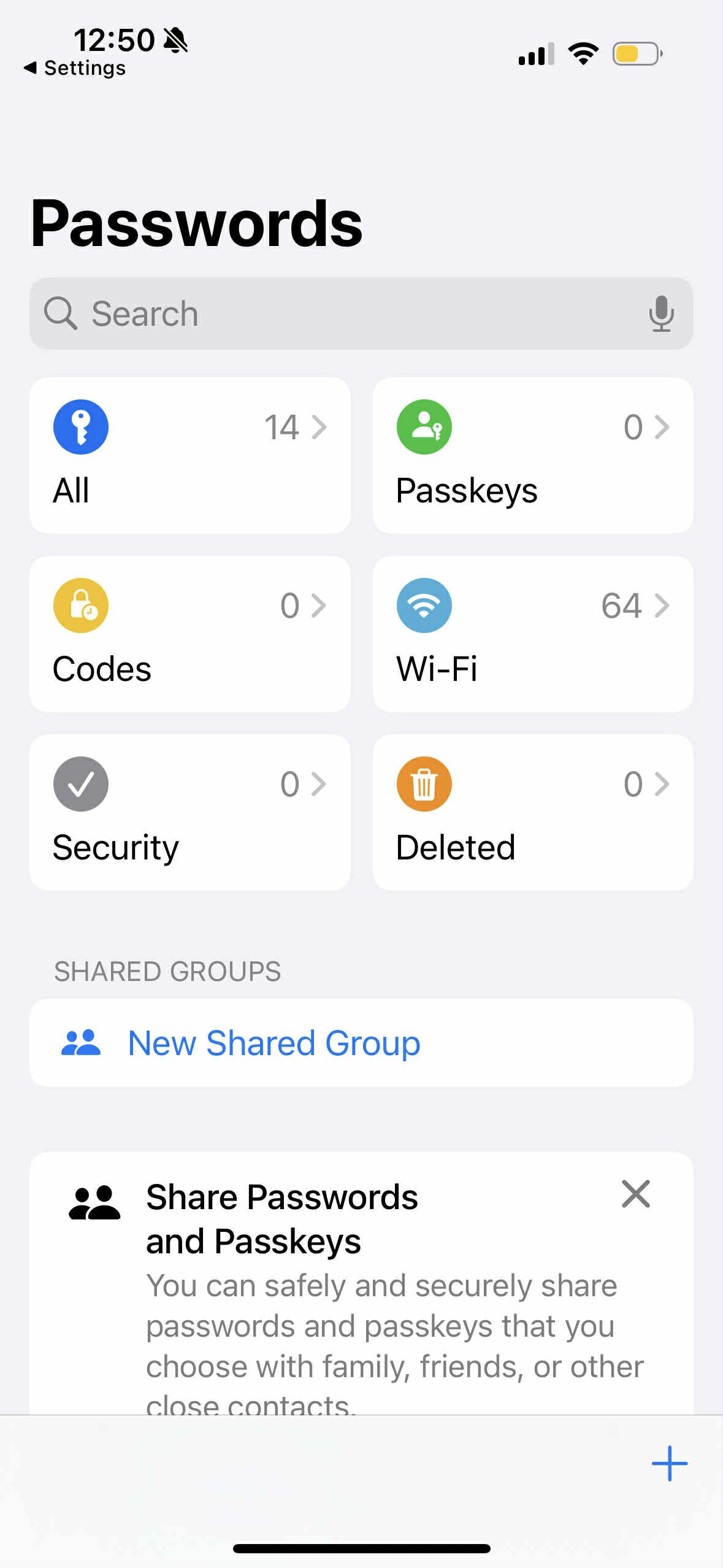
Open the app store on your iOS or Android device and search for your chosen passkey wallet. Download the application and launch it. The initial screen will typically offer options to "Log In" or "Create New Wallet." Select the option to create a new account, which will trigger the passkey generation flow.
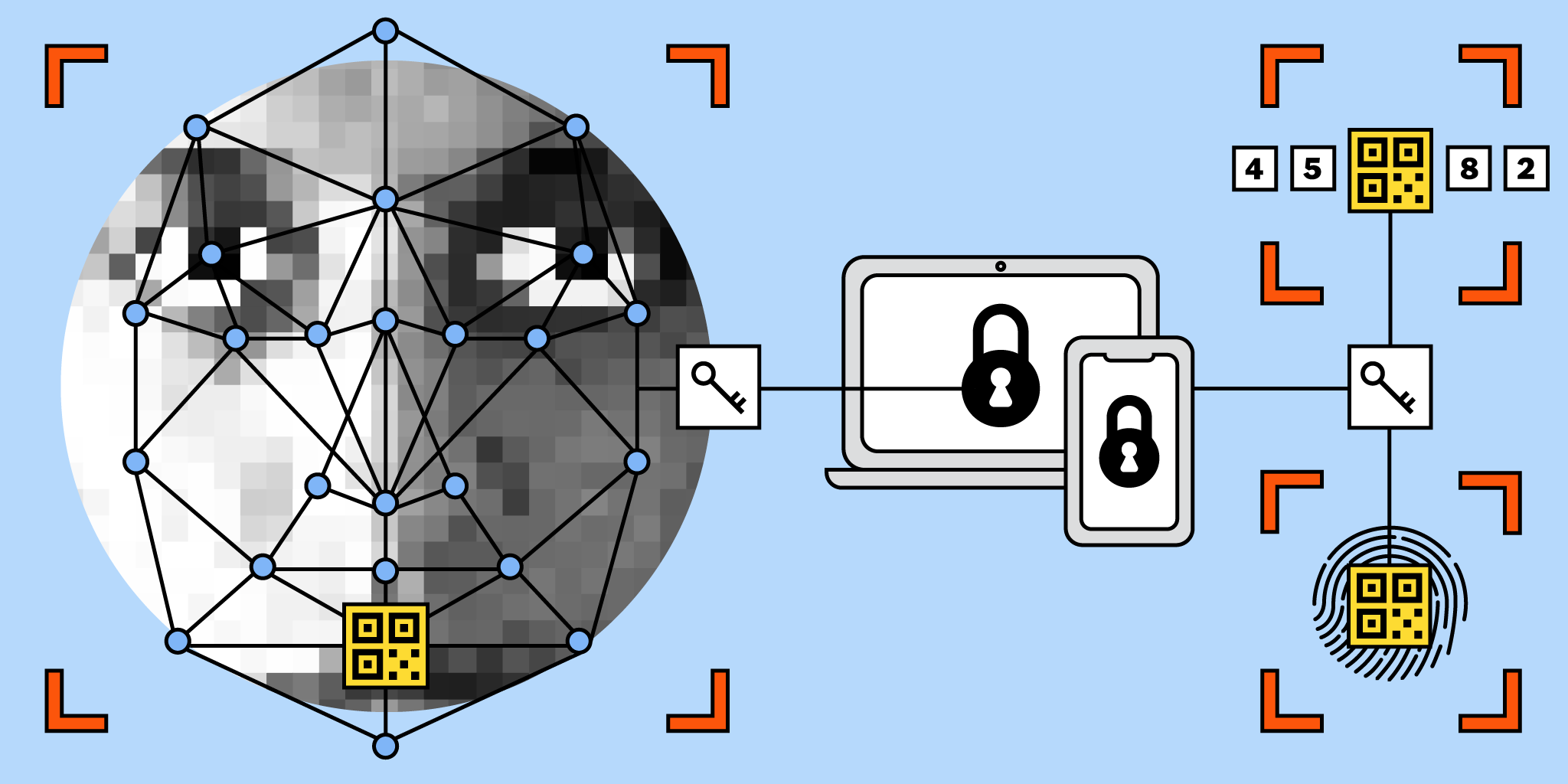
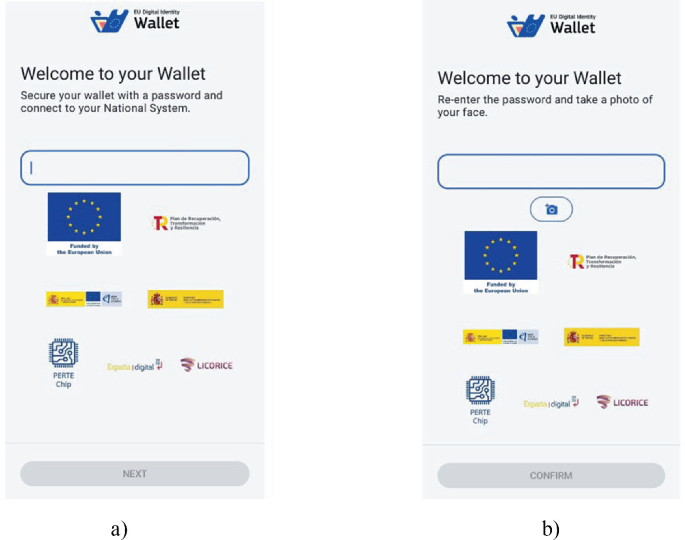
When you select "Create New Wallet," the app will request permission to generate a passkey. Your device will prompt you to verify your identity using your preferred biometric method (Face ID, Touch ID, or fingerprint). This step confirms that you are the owner of the device and authorizes the creation of the cryptographic key pair. The private key is generated locally and encrypted with your biometric data.
Once the passkey is generated, the wallet will ask you to set a recovery method. While the private key is secured by your device, you may still need a recovery phrase or email backup depending on the wallet provider. Follow the on-screen instructions to save this information securely. If the wallet is "embedded," it may handle recovery through your email or social login. If it is a standalone crypto wallet, you might receive a traditional seed phrase as a fallback. Store this backup in a safe place, as losing it may result in permanent loss of access if your device is damaged or lost.
2. Verify the account setup
After the passkey is created, the wallet will likely ask you to verify the setup by performing a test transaction or signing a message. This confirms that the biometric authentication is working correctly and that the passkey is properly linked to your new wallet address. Complete this verification step to ensure your account is fully functional and ready for use.
Secure your account with biometric authentication
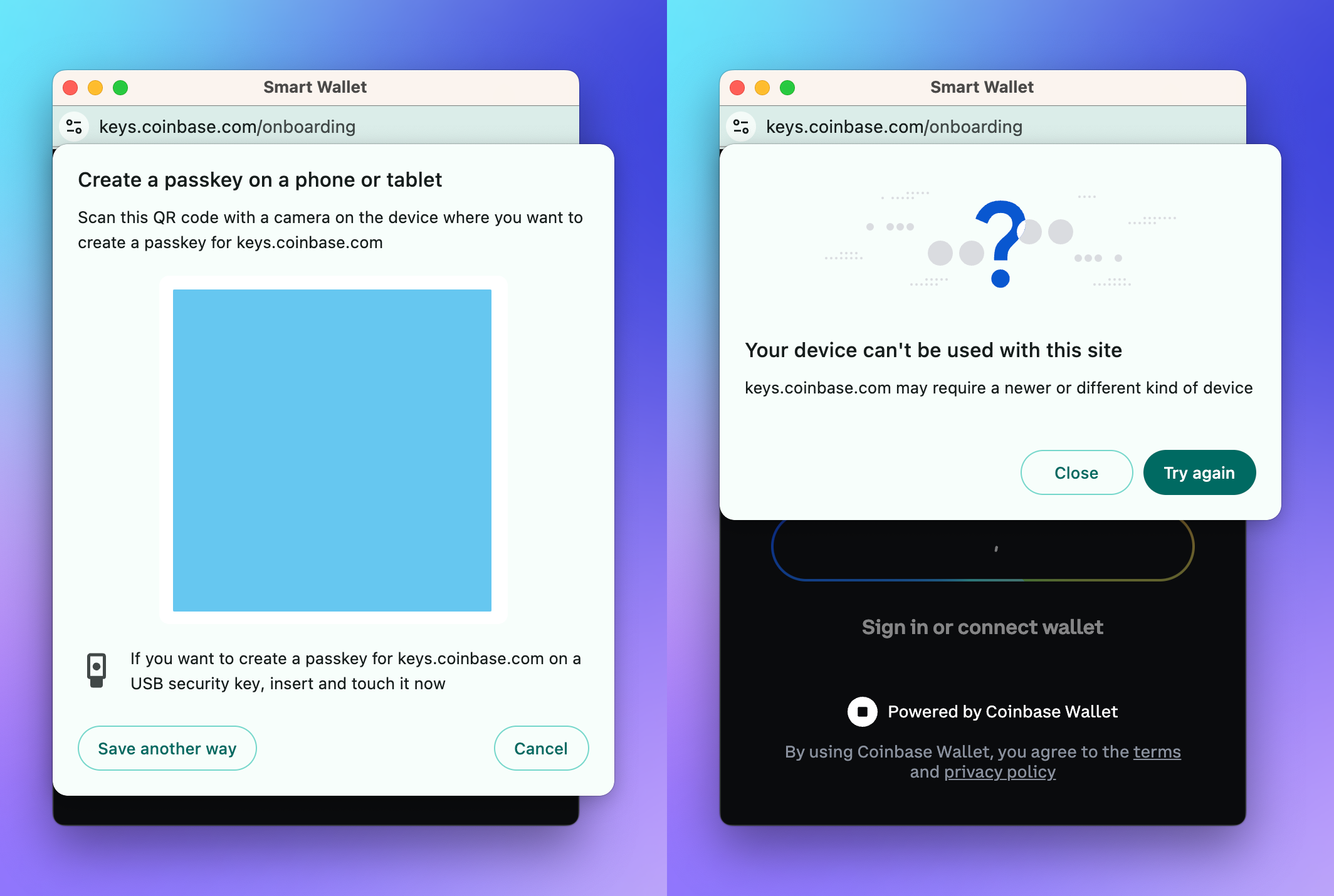
Configuring biometric authentication for your passkey wallet transforms your device’s hardware security module into the primary gatekeeper for your transactions. Instead of typing out a complex password or managing a seed phrase for every login, you rely on the unique biological markers stored locally on your device. This method is inherently phishing-resistant because the cryptographic private key never leaves the secure enclave, and the biometric check occurs locally before any transaction is signed.
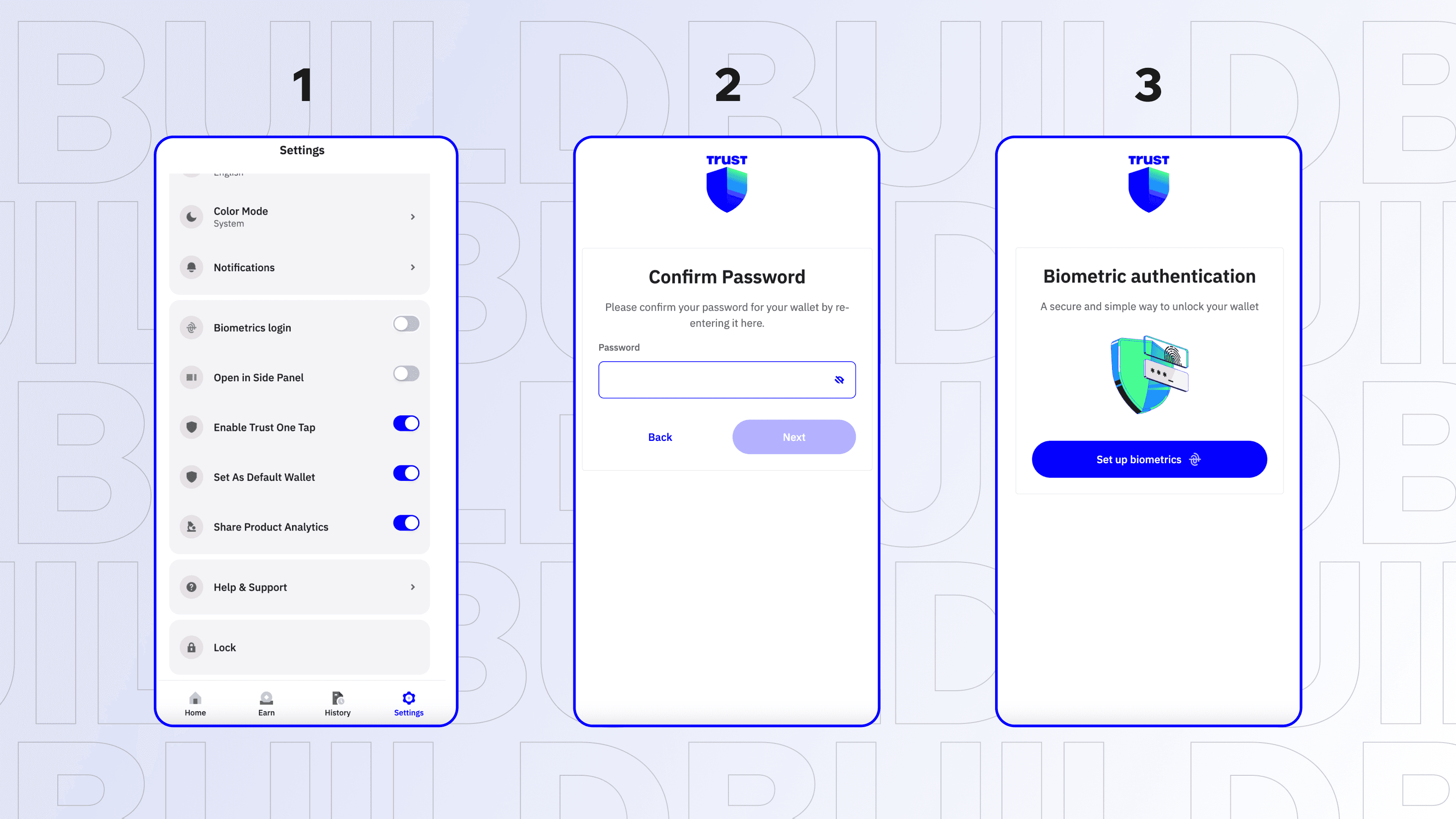
To set this up, you must first ensure your device’s operating system recognizes your biometric data. On iOS or macOS, this means having Face ID or Touch ID enabled in your system settings. On Android, this involves registering your fingerprint or face scan in the security settings. Once your OS is configured, open your passkey wallet application and navigate to the security or authentication settings menu.
Navigate to your device’s system settings and ensure Face ID, Touch ID, or fingerprint scanning is active and linked to your device passcode. This step ensures the hardware security module is ready to authorize the passkey.
Open your passkey wallet app and select the option to enable biometric authentication for transaction signing. The app will prompt you to verify your identity using your device’s native biometric sensor.
Initiate a small test transaction or send a minimal amount of cryptocurrency to a secondary address. Confirm that the app requests your biometric scan (face or fingerprint) to authorize the signature, verifying that the link is secure and functional.
This setup leverages the fact that passkeys are bound to the specific device and the user’s biometric presence. As noted by the Passkeys Foundation, this approach replaces traditional passwords with a method users already trust, providing a more polished and secure onboarding process. Because the private key remains isolated in the secure hardware module, even if a malicious site attempts to trick you into signing a transaction, the biometric requirement ensures you are actively consenting to the action.
Set up recovery and backup options
A passkey-only wallet ties your assets to a single device credential. If you lose that device or it becomes inaccessible, your funds are locked away. Because there is no traditional seed phrase to fall back on, you must establish a recovery mechanism before you deposit any significant value.
Choose a social recovery protocol
Social recovery allows you to designate trusted contacts—such as family members or legal advisors—as guardians. These guardians can help restore access to your wallet if you lose your primary device. This method shifts the burden of security from a single point of failure to a distributed network of trusted parties.
When selecting a recovery provider, look for established protocols that support this feature natively. Exodus, for example, has integrated passkey capabilities that include backup and recovery options for users who need a safety net beyond their device Exodus Passkey Wallet. Ensure your chosen wallet explicitly supports social recovery before you begin using it for storage.
Encrypt and store backup keys
Some passkey wallets offer an encrypted backup key or a recovery seed that you must save manually. This is not a convenience feature; it is a critical requirement. If you choose this route, you must store the backup in a secure, offline location. Consider using a hardware security key or a safe deposit box. Never store this backup in a cloud service that is linked to the same device or account that holds your passkey, as a single breach could compromise both.
Verify your recovery flow
Before you fund your wallet, test the recovery process. Initiate a recovery simulation if your wallet provider offers one, or document the exact steps required to regain access. This ensures you understand the process when you are under pressure. A failed recovery attempt can result in permanent loss of assets.
-
Identified a social recovery provider with active guardians
-
Generated and stored an encrypted backup key in a secure offline location
-
Tested the recovery process to verify access restoration
-
Confirmed that the recovery method does not rely on the same device as the passkey
Warning: Do not fund your wallet until you have successfully verified your recovery method. Assets lost due to failed recovery are irreversible.
No comments yet. Be the first to share your thoughts!