
Choose a passkey wallet provider
Selecting the right passkey wallet provider determines your security baseline and cross-chain flexibility. The best providers integrate ERC-4337 account abstraction standards, allowing passkey authentication to replace traditional seed phrases while maintaining self-custody.
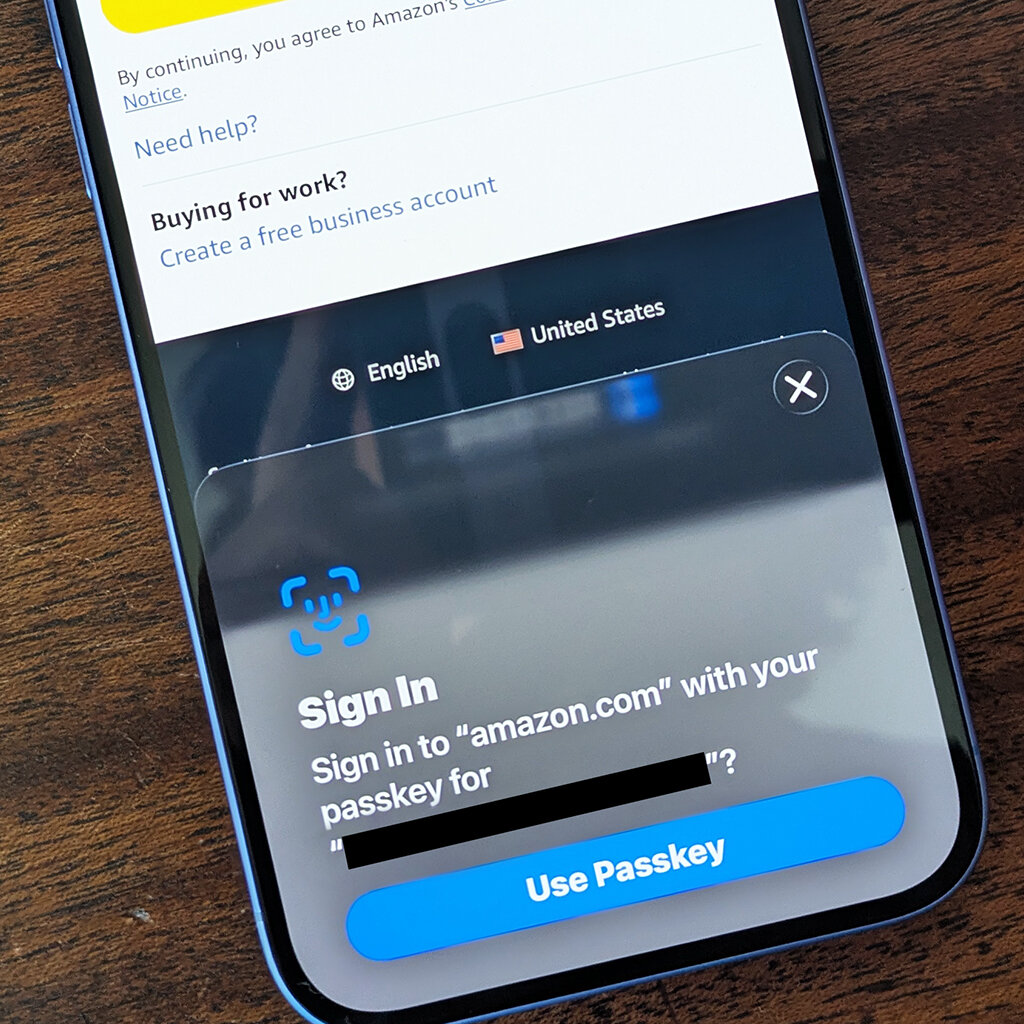
When evaluating options, prioritize providers that offer native device-based authentication via biometrics or hardware security keys. Look for multi-chain support and robust recovery mechanisms, as losing access to your device without a proper recovery plan can result in permanent loss of funds. The Passkeys Foundation notes that this technology offers a "superior user experience" by leveraging authentication methods users already trust, such as Face ID.
Compare the leading options below to find the provider that aligns with your technical needs and preferred blockchain ecosystems.
| Provider | Supported Chains | Recovery Method | Platform |
|---|---|---|---|
| Exodus (Passkeys Wallet) | Multi-chain (EVM, Solana) | Social recovery / Backup codes | iOS, Android, Desktop |
| Rabby Wallet | EVM (Ethereum, Polygon, Arbitrum) | Seed phrase + Passkey | Browser Extension, Desktop |
| Safe{Wallet} | EVM (ERC-4337) | Multi-sig + Social recovery | Web, Mobile |
| Frame | EVM | Device passkey + Seed backup | Desktop (Mac, Windows, Linux) |
Install the wallet app or extension
Start by downloading the official wallet software for your primary device. Whether you choose a mobile app or a browser extension, getting the correct version is the foundation for a secure passkey setup. Avoid third-party mirrors; always source the software directly from the provider’s verified domain or official app store listing to ensure you are running authentic code.
Visit the official website of your chosen provider or open your device’s app store. Search for the specific wallet name and verify the publisher. For example, Coinbase users should navigate directly to their help portal to locate the Smart Wallet download link, ensuring you avoid phishing sites that mimic the interface.
Run the installer or tap the install button. Once the application launches, check the version number against the provider’s official documentation. This step confirms that the software has not been tampered with and is compatible with your device’s current operating system.
Follow the on-screen prompts to create your account. During this phase, the wallet will guide you through generating or importing your passkey. Do not skip the security verification steps, as these establish the biometric or device-based authentication that protects your assets.
After installation, perform a quick security check. Ensure that your device’s biometric sensors (Face ID, Touch ID, or fingerprint) are enabled and responsive, as these are the keys to your wallet. If the app requests permission for notifications or storage, grant them to ensure full functionality. Your passkey wallet is now ready for configuration.
Create your passkey account
Setting up a passkey wallet removes the friction of managing seed phrases and complex passwords. Instead of memorizing a string of words that can be lost or stolen, your wallet relies on your device’s built-in security hardware. The private key never leaves your phone or computer, making it significantly harder for attackers to intercept your funds.
1. Choose a compatible wallet
Not all crypto wallets support passkeys yet. Look for platforms that explicitly mention ERC-4337 account abstraction or native passkey integration. Popular options include wallets that have partnered with major authentication providers. Verify that the wallet you choose supports the blockchain network you plan to use, such as Ethereum or Solana, as passkey support varies by chain.
2. Download and open the app
Install the wallet application from the official app store or website. Open the app and select the option to "Create New Wallet" or "Set Up Passkey." Avoid using third-party download links or unofficial mirrors, as these may compromise your security from the very first step.
3. Register your biometrics
The app will prompt you to create a passkey. This process involves linking your device’s biometric data—such as Face ID, Touch ID, or a fingerprint—to the wallet. Your device will generate a unique cryptographic key pair. The public key is stored on the blockchain, while the private key remains encrypted in your device’s secure enclave. You will never see or need to write down this private key.
Use your fingerprint, face scan, or PIN to authorize the creation of the passkey. This step verifies that you are the owner of the device and authorizes the binding of the biometric credential to the new wallet address.
While you don’t need a seed phrase, most passkey wallets still require a recovery method in case you lose access to your device. This is often a QR code or a short alphanumeric code. Store this recovery data in a secure, offline location. Without it, you cannot recover your wallet if your device is lost or damaged.
Once the passkey is created, the app will display your new public wallet address. Copy this address and send a small test transaction from another wallet to confirm that you can receive funds. This ensures your passkey is correctly linked and ready for use.
By using your device’s native security, you eliminate the most common point of failure in crypto: the user. Your passkey acts as a physical key that only you can use, provided your device remains secure. This setup is faster than traditional password entry and far more resilient against phishing attacks.
Secure your passkey recovery
Traditional crypto wallets rely on seed phrases, but passkey wallets use biometric authentication tied to your device. This shift removes the risk of writing down a 12-word phrase, but it introduces a new dependency: if you lose access to your device or its biometric sensors, you need a backup plan. Recovery in this context means ensuring you can regain access to your wallet without a single point of failure.
Create a backup passkey
The most reliable way to secure a passkey wallet is to register a second passkey on a separate device. Most modern wallets allow you to add multiple authenticators. If your primary phone is lost or damaged, you can use the backup device—such as a tablet, laptop, or secondary smartphone—to sign in. This mirrors how you might use a hardware key alongside a phone for banking.
To set this up, open your wallet’s settings and look for the "Security" or "Authenticators" section. Select the option to add a new passkey. Follow the on-screen prompts to register your secondary device. Ensure this device is charged and accessible, as it serves as your safety net. If your wallet does not support multiple passkeys natively, check if it allows exporting a recovery file that can be stored securely on another device, though this varies by provider.
Set up social recovery
For users who hold significant assets, social recovery offers a decentralized safety net. This method distributes trust among a group of trusted contacts—friends, family, or advisors. If you lose access to your primary device, these contacts can help restore your wallet access through a multi-signature process. This is particularly useful for smart wallets that support ERC-4337 standards, where recovery is managed by code rather than a central authority.
To enable social recovery, you will need to select 3-5 trusted contacts. Each contact receives a unique recovery key. You do not need to share your private keys with them; instead, they hold a piece of the puzzle required to verify your identity. If you lose access, you initiate a recovery request, and your contacts vote to approve it. This process ensures that no single person can hijack your wallet, while still allowing you to regain access if you are locked out.
Verify your recovery setup
Setting up recovery is only effective if you can actually use it. Test your backup passkey by logging out of your primary device and signing in with the secondary one. For social recovery, confirm that your contacts have received their keys and understand how to use them. Keep your recovery instructions clear and accessible, but never store sensitive details like recovery keys in plain text on your device or in unsecured cloud notes.
Open your wallet settings, navigate to Security, and add a new passkey using a tablet, laptop, or secondary phone. This device becomes your primary backup if your main phone is lost or damaged.
If your wallet supports it, choose 3-5 trusted individuals. Each receives a unique recovery key. Ensure they understand how to verify your identity if you need to restore access.
Log out of your primary device and attempt to sign in using your backup passkey. Verify that your contacts can respond to recovery requests if applicable.
Fund and test your passkey wallet
Before moving significant assets, verify that your passkey authentication and transaction signing work as expected. This section walks you through adding a small amount of funds and sending a test transaction to confirm the wallet is fully operational.
Navigate to the "Deposit" or "Buy" section within your passkey wallet interface. Use the integrated on-ramp feature to purchase a small amount of cryptocurrency. For testing purposes, a minimal amount (e.g., $10–$20 equivalent) is sufficient. This step verifies that your device's biometric or PIN authentication correctly authorizes incoming transactions.
Initiate a send transaction to a separate address you control, such as a hardware wallet or a secondary exchange account. Enter the recipient address and the small amount you just deposited. Confirm the transaction details and complete the passkey verification step. This confirms that your passkey can successfully sign and broadcast outgoing transactions on the network.
Check the transaction status in your wallet's activity feed or on a block explorer using the transaction hash. Ensure the transaction is marked as "Confirmed" or "Success." This final step validates that the network accepted your passkey-signed transaction and that the funds have moved correctly from your wallet.
If the test transaction fails, check that your device's biometric settings are enabled and that you have sufficient network fees (gas) for the transaction. Passkey wallets rely on local device authentication, so ensure your operating system's security settings allow the wallet app to access your biometrics.
Common passkey wallet: what to check next
Addressing specific concerns about security, device loss, and cross-platform usage helps clarify how passkey wallets function in practice.
What are passkey wallets?
Passkey wallets simplify blockchain interactions, strengthen security, and sharpen a product's UX. They use device-based authentication, giving users a method they already trust—such as biometrics or Face ID—and providing a more polished onboarding process.
Do passkey wallets work across different devices?
Yes. Passkeys are available in a wide range of platforms and operating systems, including Android, iOS, Mac, and Windows. They run on major browsers like Brave, Chrome, and Safari, ensuring broad compatibility.
What happens if I lose my device?
If you lose your device, you can recover your passkeys through your account's backup settings. Most providers sync passkeys to the cloud, allowing you to restore them on a new device using your primary authentication method.
Are passkey wallets more secure than passwords?
Passkey wallets are generally more secure because they use public-key cryptography. Unlike passwords, they are resistant to phishing and cannot be reused across sites, making them a stronger defense against credential theft.
No comments yet. Be the first to share your thoughts!